
OfficeClip AI: Intelligent Assistant Guide
OfficeClip AI is designed to streamline your workflow by transforming raw notes into actionable schedules and assisting with your daily communications. This integration helps you focus on high-level tasks while the AI handles the organization and drafting.
To set up the AI integration:
- Login to OfficeClip.
- Go to Settings > Integration.
- On this page you will see all the integrations. Click on
Settings in AI Integration.
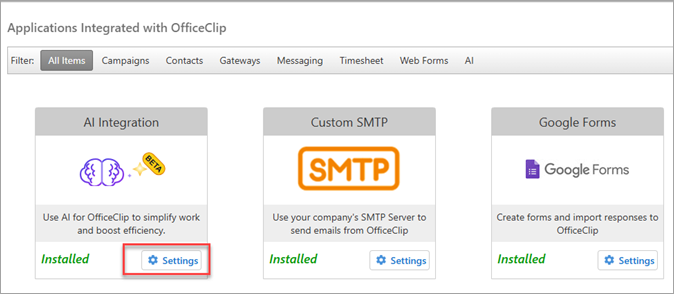
- On the next screen, you will see the AI configuration screen.
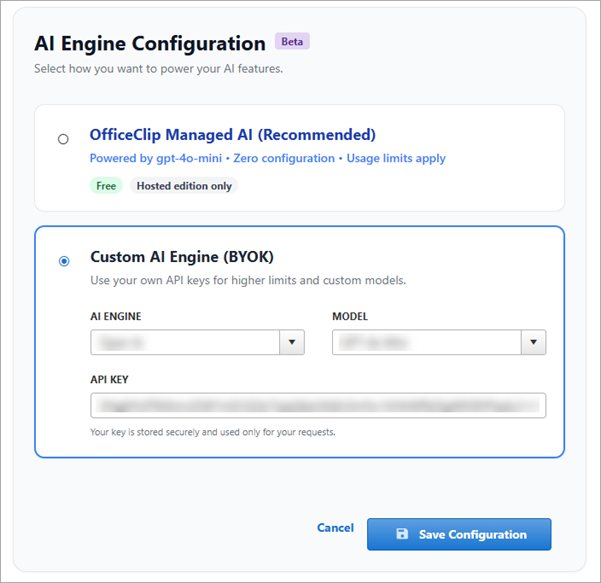
- The first option OfficeClip managed AI can be used for Free, which is available only in the Hosted edition.
- It requires zero configuration, though specific usage limits apply.
- Second option is the Custom AI engine where you can use your API keys for higher usage limits and for using custom models.
- In this mode, select the desired AI engine from the dropdown (Gemini, Open AI, Grok AI). Select teh desired model and enter your API key.
- Click Save Configuration to enable the AI Integration.
- Use this integration to summarize notes and draft professional email replies instantly.