
OfficeClip & AI Integration
Work faster with AI-powered notes and emails.
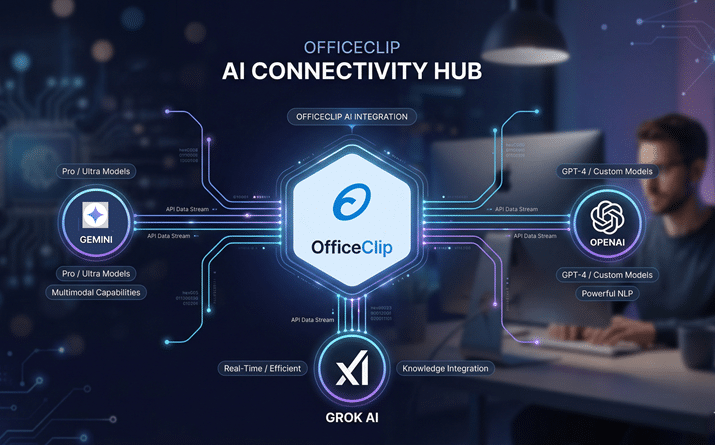
OfficeClip AI works as your intelligent assistant inside OfficeClip, helping you convert raw notes into organized summaries, tasks, and schedules, and draft professional emails in seconds.
This lets you focus on decisions and follow‑ups while AI does the writing and organizing for you.
Why use AI with OfficeClip?
- Zero Configuration Needed: Use the free, OfficeClip-managed AI straight out of the box on our Hosted edition.
- Custom AI Engine Flexibility: Connect your own API keys for higher usage limits and your choice of AI models (Gemini, OpenAI, Grok AI).
- Instant Note Summaries: Turn long, unstructured notes into clear highlights, key decisions, and next steps you can quickly review or share.
- Actionable Schedules: Extract tasks, deadlines, and follow‑ups from your notes and convert them into activities, events, or tasks within OfficeClip.
- Professional Email Drafts: Generate polished email replies based on your notes or incoming messages, then customize and send directly from OfficeClip.
- Time Saved Everyday: Reduce time spent on drafting, re‑writing, and formatting so your team can focus on customers and core work.
Step-by-Step Guide:
Tips for using AI Integration:
- Start with OfficeClip Managed AI: If you are on the Hosted edition, enable the managed option first to understand workflows and usage patterns before connecting a custom engine.
- Select the Right Model: When using the Custom AI engine, choose between Gemini, OpenAI, or Grok AI from the dropdown based on your specific requirements.
- Secure Your API Keys: Keep your personal API keys secure when setting up the Custom AI engine to prevent unauthorized usage on your account.
- Leverage AI for Notes: Use the AI integration to summarize long notes and instantly extract key action items.
- Draft Better Emails: Utilize the AI assist to compose professional and context-aware email replies directly within OfficeClip.
- Monitor Usage Limits: Keep an eye on your usage limits, especially if you are using the free OfficeClip managed AI option.
- Train Your Team: Show your team where AI appears in Notes and Email and share a few examples so adoption is smooth and consistent.
Benefits of AI Integration with OfficeClip:
- Intelligent Summaries: Quickly turn raw, lengthy notes into concise, actionable summaries.
- Faster Follow‑Ups: Turn meeting notes into ready‑to‑send email drafts and task lists, so nothing falls through the cracks.
- Multiple Engine Support: Not locked into one provider; choose from Gemini, OpenAI, or Grok AI for your custom setup.
- Flexible and Future‑Ready: Support for multiple AI engines and models means you can adapt as AI providers evolve and improve.
Frequently Asked Questions
You need an OfficeClip account with access to Settings → Integration. Hosted users can enable OfficeClip managed AI instantly; For the Custom AI engine, you will need an active API key from your chosen provider (Gemini, OpenAI, or Grok AI). Navigate to Settings > Integration > AI Integration to enter it.
OfficeClip managed AI is available for free with usage limits in the Hosted edition. If you bring your own AI engine, your provider may charge based on usage or selected model.
Yes. In Custom AI engine mode you can select supported providers (such as Gemini, OpenAI, or Grok AI) and then choose from their available models in the dropdown.
Log in to OfficeClip, go to Settings > Integration. Locate the AI Integration option, click Settings, and you will see the AI configuration screen where you can choose your setup mode. For more details refer: AI Configuration


