
Keep your Google or Outlook contacts and calendar in sync with OfficeClip so everyone sees the same information in the CRM, on the web, and on their mobile devices. Synchronization reduces manual data entry and helps avoid duplicate or outdated records.
What gets synchronized?
If you already use Google or Outlook to manage contacts and appointments, OfficeClip can synchronize that information with your Contact Manager. The following OfficeClip entities can be kept in sync with Google and Outlook:
- OfficeClip Contacts
- Contact Related Notes: These shows up in the contact description field
- Contact Related Events
- Contact Related Tasks
- OfficeClip Calendar of Events- Non-Contact Related
- OfficeClip Notes- Non-Contact Related
Synchronizing with Google
Use Google Sync to keep OfficeClip contacts, events, and tasks aligned with your Google account so your CRM and Google Workspace always show the same data. This helps your team work from a single source of truth whether they are in OfficeClip, Gmail, or Google Calendar.
Sync Options
Use the synchronization options to control what is exchanged between OfficeClip and Google:
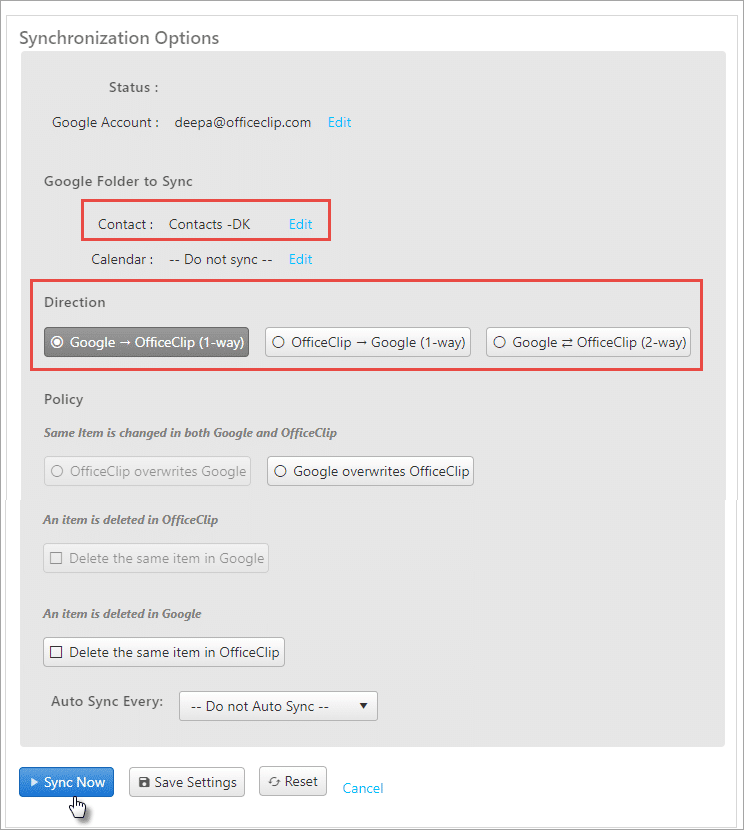
- Choose whether to sync only contacts or include calendar events and tasks.
- Decide if the sync should be one-way (OfficeClip to Google or Google to OfficeClip) or two-way.
- Configure how to handle changes and potential conflicts during synchronization.
- Run synchronization on demand so you stay in control of when information is updated.
Synchronizing with Outlook
Use the OfficeClip Outlook Add‑in to synchronize Outlook contacts, calendar events, and tasks with OfficeClip. This keeps your desktop Outlook and your CRM in step, so updates made in one place show up in the other.
To synchronize with Outlook, install the OfficeClip Add‑in for Outlook on your system and connect it to your OfficeClip account. After installation, you can choose which contacts, events, and tasks to sync and how often to run the synchronization.


